Bring years of rides into one record: request your Strava or Garmin Connect export, upload the zip, add FIT files in bulk, and take your rides with you.
To import cycling history into Velograph, ask Strava or Garmin Connect for your account export, then upload the zip exactly as it arrives. Every ride in it is added, however many years it goes back, and rides that are already there are not added twice. It takes a few minutes of your time and a short wait for the export email. This guide walks through both exports, bulk FIT uploads, and how to take your rides with you again later.
Why import your whole cycling history?
Importing your whole cycling history gives you records that mean something, fitness and durability across seasons, and context for your coach or fitter. A few recent weeks of rides tell you how you are riding now. Years of rides tell you who you are as a rider.
- Records that mean something. Your power curve is built from your best effort at every duration. With your full history, a best 20 minutes from three summers ago becomes a real benchmark instead of a forgotten number.
- Fitness over seasons. The fitness, fatigue and form chart shows how you responded to past builds, breaks and race blocks, which is a good guide to planning the next one.
- Durability across years. Velograph shows how much power you keep after hours of riding. Comparing that across seasons shows whether your long rides are paying off.
- Context for your coach or fitter. When you choose to share, they see where you have come from, not only where you are.
Velograph reads each ride in an export from its original file, so each number comes from what your device recorded.
How do I export all my Strava data?
Strava lets you download an archive of your account from its website, under Settings, My Account and Download your account. Strava then emails you a download link, which may take a few hours.
These steps follow Strava's help centre as of September 2026:
- Sign in on strava.com in a web browser. The export is only available on the website.
- Hover over your name in the top right corner, choose Settings, then the My Account tab on the left.
- Under Download your account, select Get Started.
- On the next page, select Request download.
- Strava emails you a download link. This may take a few hours, so make sure you can reach the email address on your Strava profile.
The archive holds your ride files, and Velograph reads them with the names you gave your rides on Strava. Bringing the archive in is something you do as well as your Strava connection: the connection keeps working as before, and the archive adds your rides as your own files, the way a FIT upload does.
How do I export all my Garmin Connect data?
Garmin offers a full export of your account through its Data Management page, under Export Your Data. Garmin then emails you a download link, which it says typically comes within 48 hours but can take up to 30 days.
These steps follow Garmin's support article on exporting data:
- In a web browser, go to Garmin Account Data Management and sign in.
- Select Export Your Data.
- Select Request Data Export.
- Garmin emails you a download link. Garmin says links are typically sent within 48 hours but can take up to 30 days.
Inside the zip, your activities sit as FIT files in the DI_CONNECT folder. You do not need to find them yourself, and you do not need to connect anything: the export alone brings every ride since your first one.
How do I upload a Strava or Garmin export to Velograph?
Open the Connections tab on your profile and choose the export zip as you downloaded it, without unpacking it. Velograph finds the ride files inside, adds every ride in the background and skips rides that are already there.
You will find the upload under Strava, under Garmin and under A ride file.
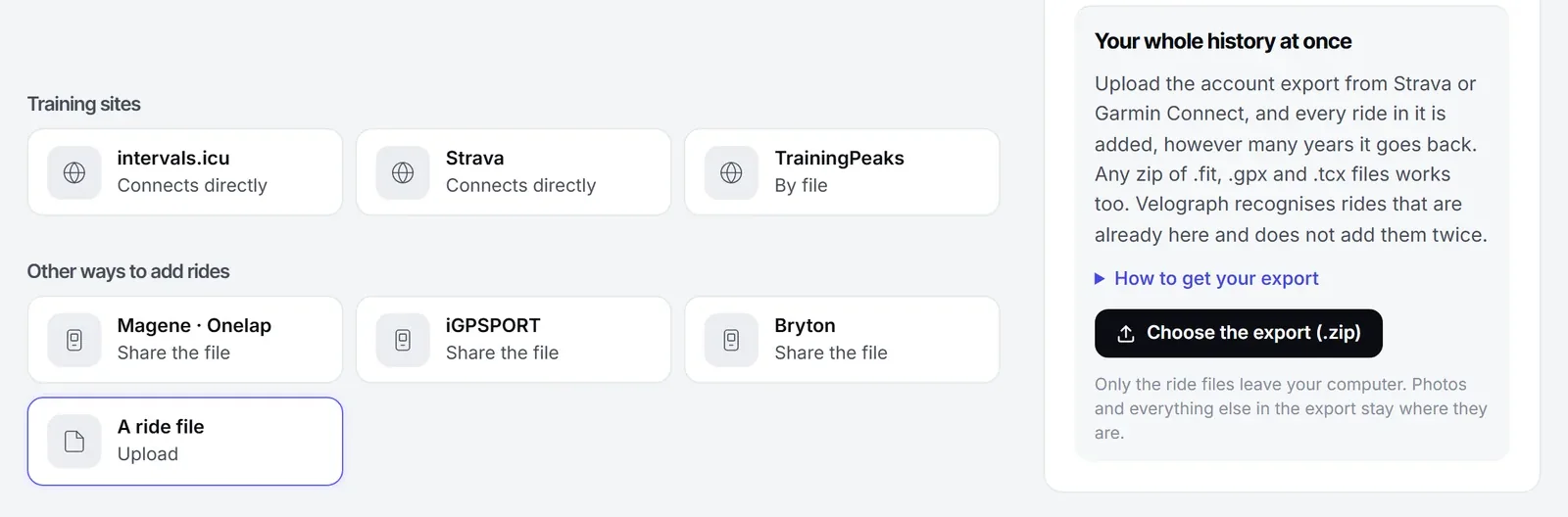
- Choose the zip as you downloaded it. Do not unpack it. Velograph opens it on your own computer and finds the ride files inside, in .fit, .gpx or .tcx format.
- Upload the rides. Only the ride files leave your computer. Photos and everything else in the export stay where they are.
- Keep the page open while the files are sent. Once they are all sent, you can leave: Velograph adds the rides in the background.
- Watch it fill in. The progress shows new rides, rides already there and any files skipped, season by season.
If the upload stops halfway, for example because your laptop went to sleep, choose the same zip again and it carries on where it stopped. Any zip of ride files works the same way, so a zipped backup of an old bike computer's files can come in too.
You decide who sees your history. A team, a coach or a fitter only sees the parts of your record you agree to share.
How do I upload several FIT files at once?
You can upload several FIT files at once in Velograph. Select them all in the folder from the Activities page or the Connections tab, and rides that are already there are skipped.
FIT stands for Flexible and Interoperable Data Transfer, Garmin's file format for data from sport, fitness and health devices. Most bike computers and sports watches save each ride as a FIT file, and Strava's Export Original option on a single activity often gives you the FIT file too.
To add a batch of them, open the Activities page and choose Upload FIT files, or use the upload on the Connections tab. Select all the files at once in the folder. Each file can be up to 25 MB, and rides that are already in Velograph are recognised and skipped. A whole season of indoor rides saved on a computer can come in this way in one go.
Can you take your rides out of Velograph again?
Yes. You can download your own rides from Velograph as FIT files, or as GPX where an outdoor ride has a GPS track, and all of them at once as a zip of FIT files. Rides that came from Strava are left out, because their files are already on Strava.
Importing your history should never feel like a one-way door. On the page of a ride you recorded, Download gives you the ride as a FIT file, with every channel, lap and pause. Where an outdoor ride has a GPS track, it also comes as a GPX track for places that only take GPX. A ride from Strava has no Download, and neither does a session entered with only its totals. You can download up to ten different rides a day this way.
For everything at once, choose Download all my rides on the Activities page, for all your rides or a single season, as a zip of FIT files without the rides from Strava. Because that is your whole history, Velograph asks for two-factor sign-in and emails you as soon as the download is requested. The link follows a day later and works for a week, so there is time to stop it if it was not you.
How do you keep your cycling history up to date?
Connect intervals.icu or Strava, or keep uploading FIT files, and new rides keep coming in after the import. When you connect intervals.icu, Velograph also imports the full history it holds, year by year, in the background. The article on intervals.icu and Velograph explains how the two work together.
All of this is part of the free Rider plan, which never expires: every bike, every bike fit and all your rides in one place. The free cycling app guide shows what else it holds, and pricing lists what Rider Plus adds. When your export email arrives, you can start for free and upload it the same day.
Further reading
- How do I export my Strava data?, Strava, 2026.
- How do I export data out of Garmin Connect?, Garmin, 2026.
- FIT protocol overview, Garmin, 2026.
Velograph is not affiliated with, sponsored by or endorsed by any team, rider or company named in this article. Names are used only to refer to publicly reported work.